Appearance
Two-Device Flow
The Two-Device Flow helps desktop users complete capture on a mobile phone. Use it when the desktop camera may produce lower-quality images, when users need better control over lighting and positioning, or when your product starts on desktop but the final photo should be taken with a smartphone.
It is enabled with the companion option in the sources attribute.
Choose a setup
Choose a source combination based on the options you want to show on the desktop entry screen.
sources | Desktop options |
|---|---|
companion | Same as front_camera,companion: LIQA adds the default front_camera source. |
front_camera,companion | Continue with desktop front camera, or scan the QR code and capture on mobile. |
front_camera,upload,companion | Continue with desktop front camera, upload a photo, or scan the QR code and capture on mobile. |
back_camera,companion | Continue with desktop back camera, or scan the QR code and capture on mobile. |
upload,companion | Upload a photo, or scan the QR code and capture on mobile. |
If companion is the only source, LIQA keeps the mobile QR flow and adds the default front_camera source for desktop continuation.
How it works
- LIQA creates a companion upload session and shows a QR code on the desktop source-selection screen.
- The user scans the QR code and opens the companion link on a mobile device.
- The companion app receives the desktop LIQA configuration, with
companionremoved fromsources. - The user captures or uploads images on the mobile device.
- The desktop LIQA receives the transferred files and emits the
capturesevent.
QR session lifetime
QR sessions expire after 10 minutes. If the user does not finish capture before the session expires, they can use the retry control to generate a new session and QR code.
Companion configuration
The companion app inherits the desktop configuration, including styles, i18n, preset, and quality-check settings. The only source-specific change is that companion is removed from sources before the configuration is forwarded to the mobile device.
Examples
Companion only
Use companion together with a camera source when the desktop user should be able to either continue on desktop or capture on mobile.
html
<hautai-liqa license="LICENSE_KEY" sources="companion"></hautai-liqa>html
<hautai-liqa license="LICENSE_KEY" sources="front_camera,companion"></hautai-liqa>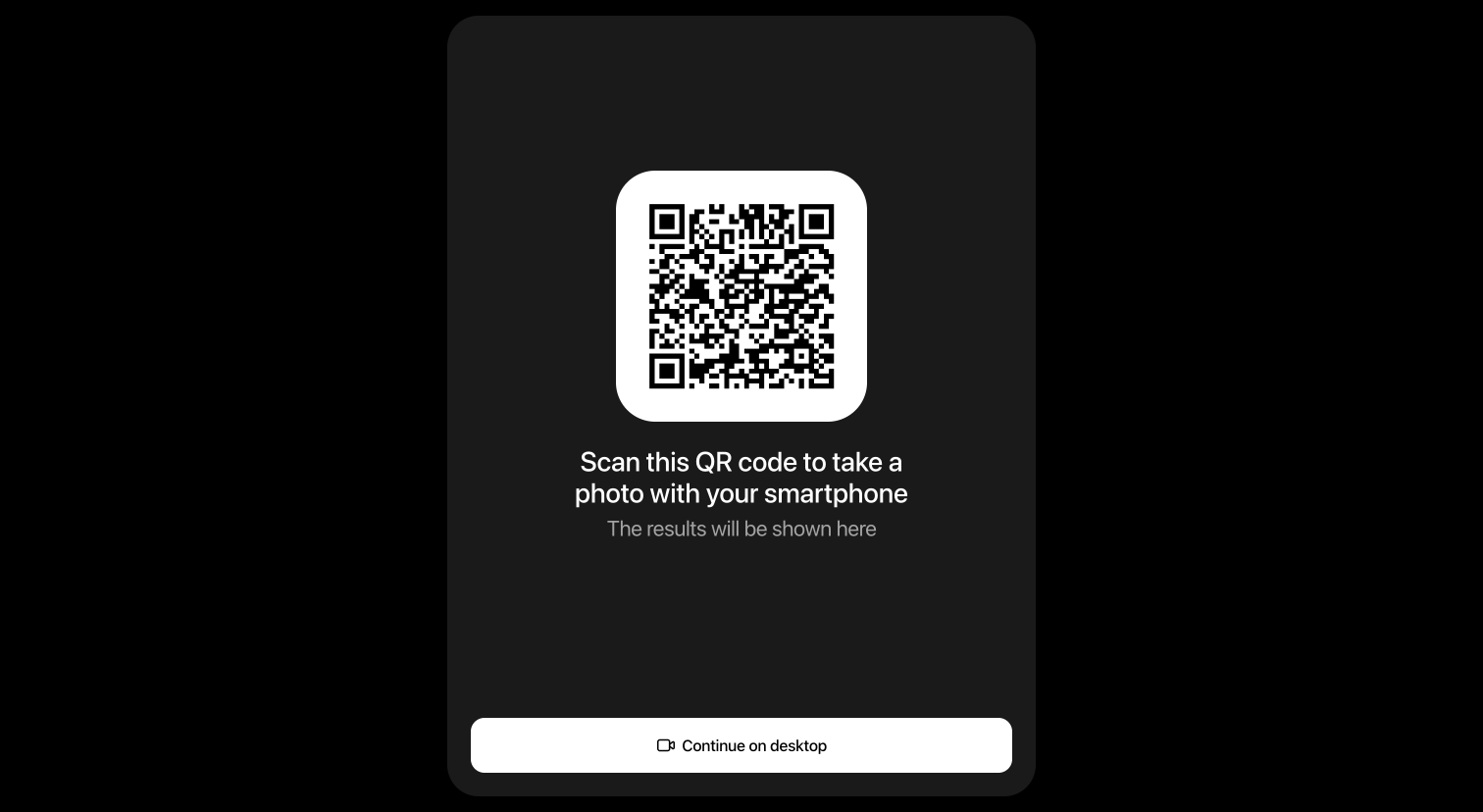
Companion + upload
Add upload when the desktop user should also be able to provide an existing photo.
html
<hautai-liqa license="LICENSE_KEY" sources="front_camera,upload,companion"></hautai-liqa>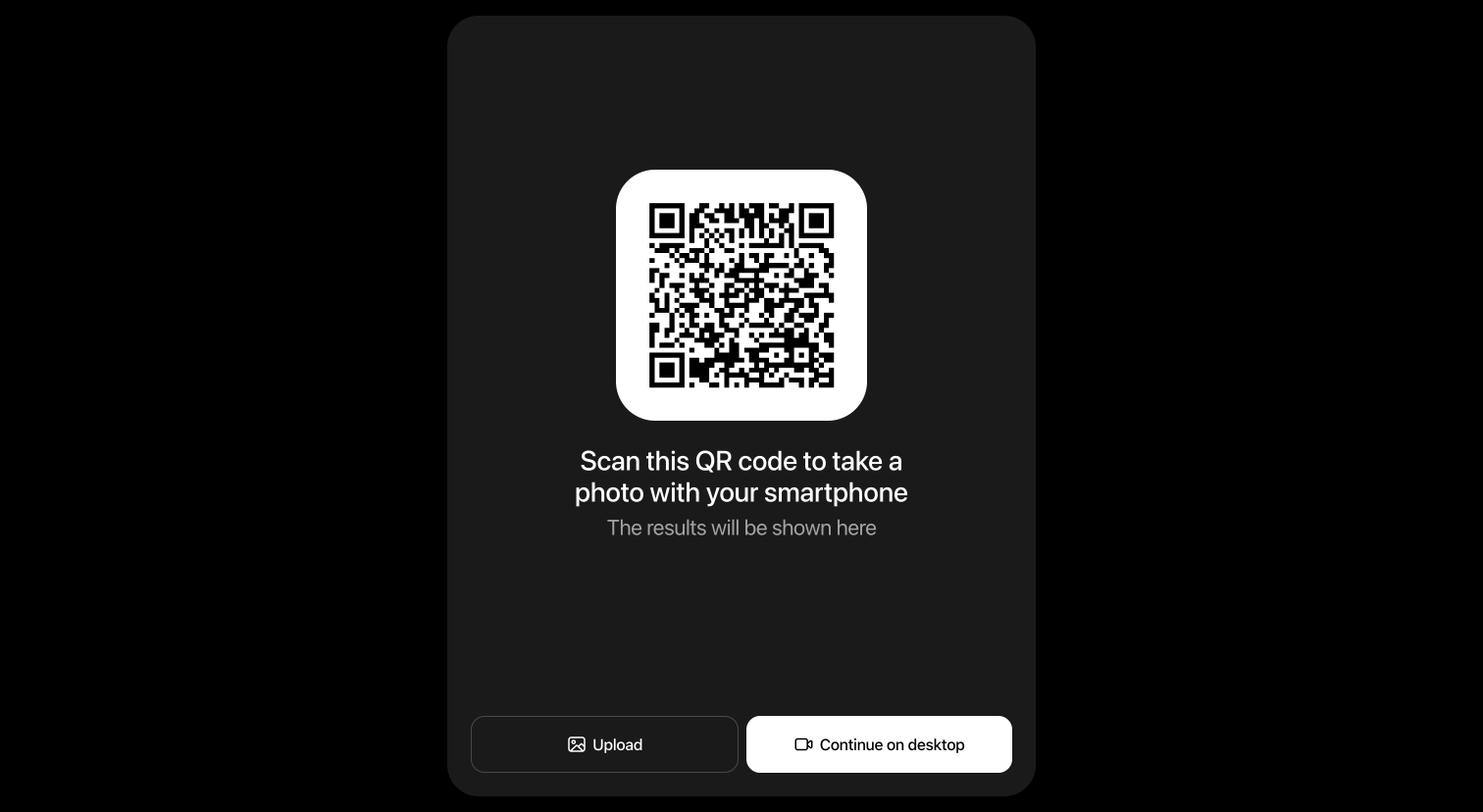
Upload + companion
Use upload,companion when you do not want to offer desktop camera capture.
html
<hautai-liqa license="LICENSE_KEY" sources="upload,companion"></hautai-liqa>Flow states
Initial QR screen
When the user activates LIQA on desktop, LIQA displays a source-selection screen adapted for the configured sources.
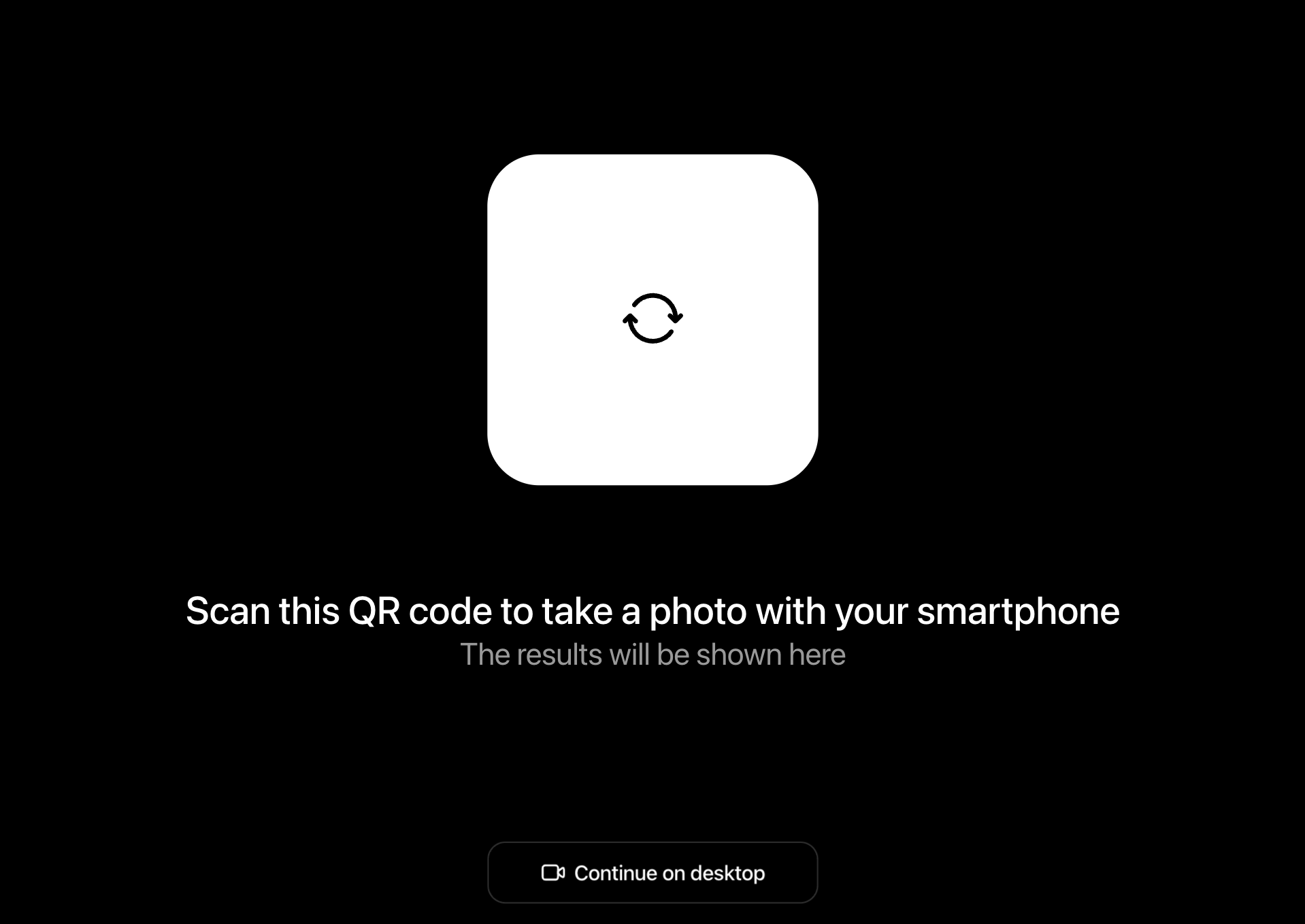
Expired QR retry
When the QR session expires or cannot be initialized, LIQA shows a retry control that creates a new session and QR code.
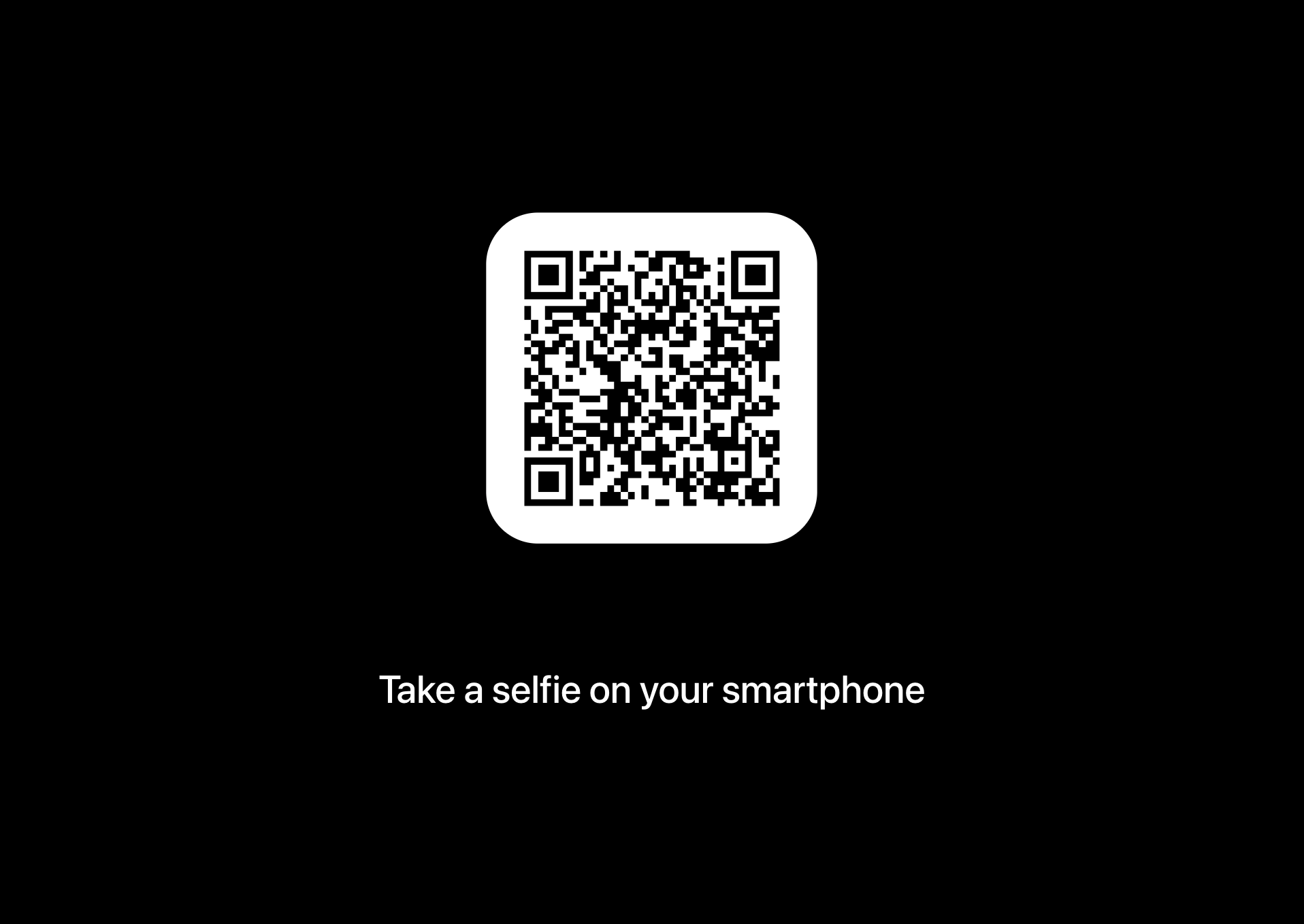
Awaiting mobile capture
After the user scans the QR code and opens the companion link, desktop LIQA hides the source-selection controls and waits for the mobile capture to finish.
Transfer progress
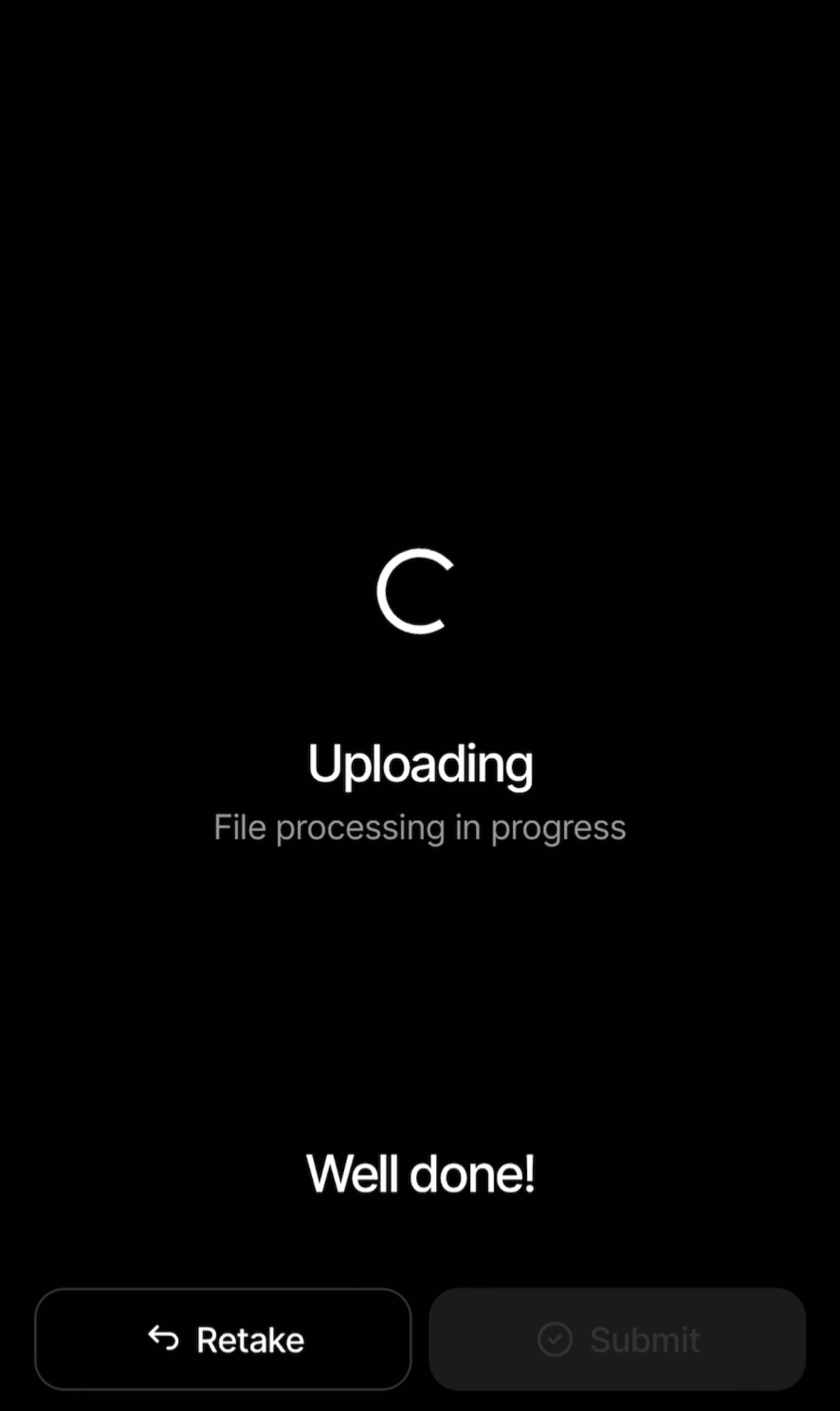
Once the user submits the photo on mobile, both apps show transfer progress: a spinner on mobile and a progress bar on desktop.

Mobile success
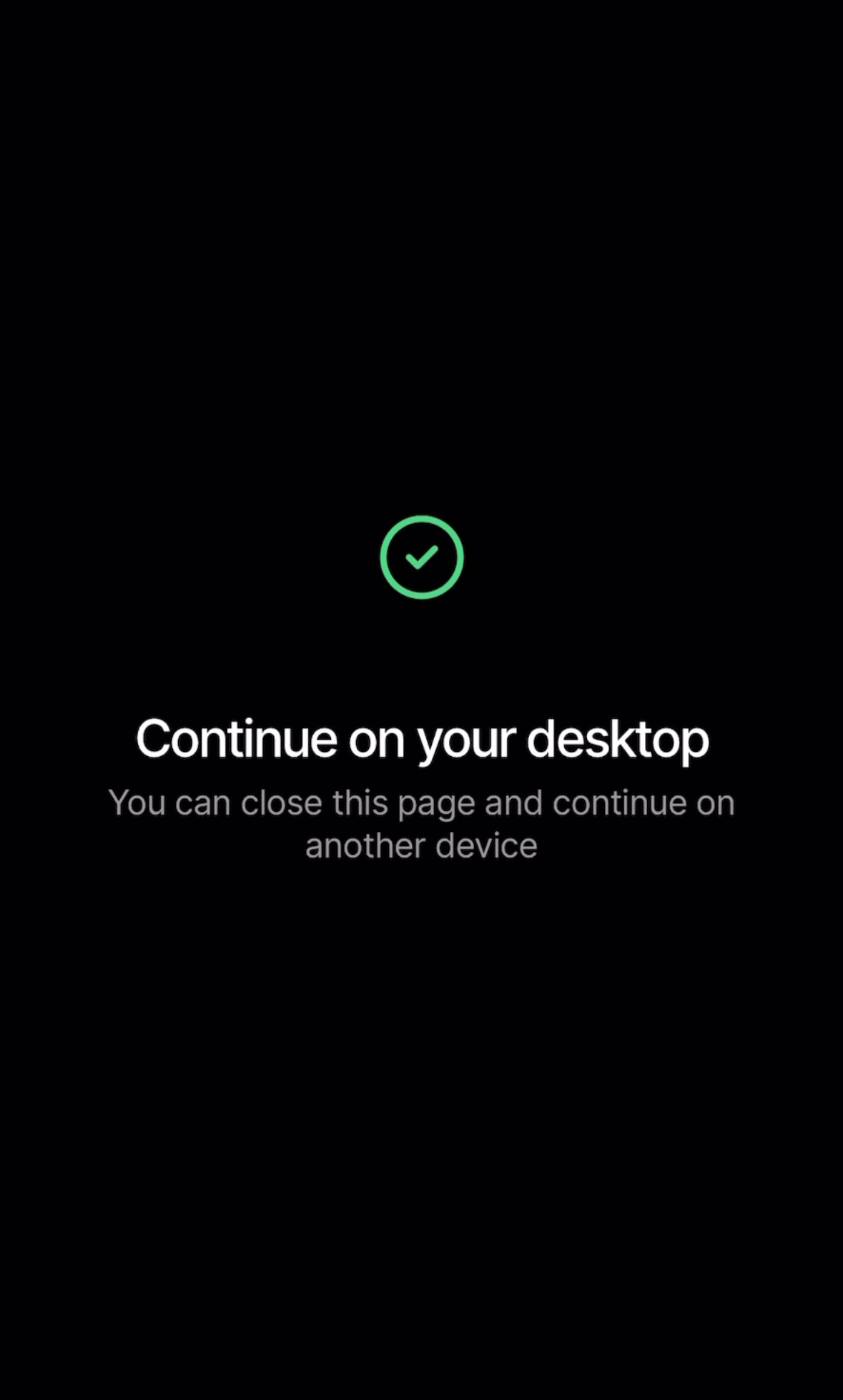
When transfer is complete, desktop LIQA emits the captures event with the images captured on mobile, and the mobile app shows a success message.
Mobile error
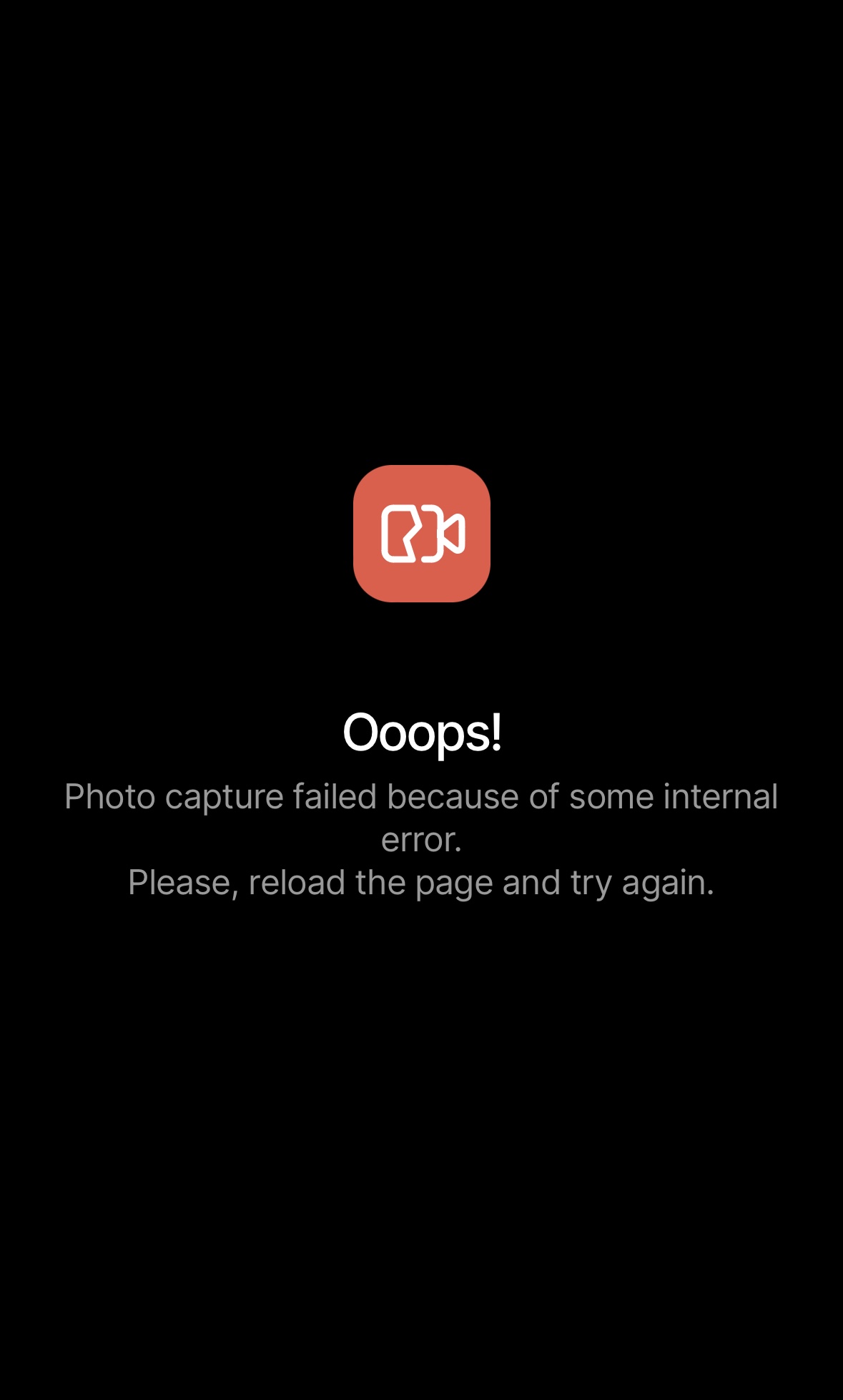
If the upload session is missing, expired, or no longer available, the companion app shows an error screen.
Quality checks
The quality-check-sources attribute supports companion. If quality-check is enabled and quality-check-sources is not provided, LIQA applies quality checks to companion captures by default.
For companion captures, quality checks run after the mobile image has been transferred back to the desktop LIQA session.
html
<hautai-liqa
  license="LICENSE_KEY"
  sources="front_camera,upload,companion"
  quality-check="normal"
  quality-check-sources="front_camera,companion"
></hautai-liqa>
Affected APIs
- Image Sources: add
companiontosourcesto enable mobile capture from a desktop entry screen. - Quality Check:
quality-check-sourcescan includecompanion. - Styles: Image Source Selection: on desktop entry screens,
.source-selectionanchors remain relevant, but.source-selection .icon-camera-lg,.source-selection .icon-upload-lg, and.source-selection .icon-camera-access-deniedcan be ignored when companion entry UI is shown. - Styles: Companion (2-device flow):
.companion .qr-code,.companion .upload-progress,.companion .camera-permission-prompt, and.companion .camera-permission-deniedselectors can become active on desktop and mobile companion screens. - Text Messages (
i18n):companion.*keys become active, especiallycompanion.continue_on_desktop,companion.upload_photo, andcompanion.qr_retry. - Events: desktop LIQA emits
capturesafter companion images are transferred.