Appearance
Photo quality check
The Photo Quality Check feature helps clients reduce low-quality photo submissions before photos are uploaded. It validates captured or uploaded photos and gives users clearer feedback when photo quality does not meet the configured requirements.
When to use quality checks
Use quality checks when photo quality has a direct impact on analysis accuracy, operational cost, or user trust.
Common examples include:
- Clinical studies where every submitted image must meet a consistent capture standard.
- Before-and-after treatment tracking where images need to be comparable over time.
- Remote consultations where a poor image can delay review or require manual follow-up.
- Any flow where failed analysis, manual review, or retakes are more costly than asking the user to fix the photo during submission.
What LIQA checks
Depending on the enabled mode, preset, and source, LIQA can evaluate the following signals:
- Face presence
- Enough visible skin
- Face pose / angle
- Resolution
- Blur
- Exposure
- Uneven or colored lighting
- Strong shadows
- Generic skin occlusion
- Glasses
- Forehead coverage by bangs, hat brim, or similar occlusions
Preset and source matrix
LIQA currently supports quality-check-related behavior in the following way:
| Preset | Live capture guidance | Post-capture preview validation | Notes |
|---|---|---|---|
face | Yes | Yes | Supports quality-check and occlusion-detection. |
face-180 | Yes | Yes, for front, left, and right captures | Supports quality-check and occlusion-detection across the 3-step capture flow. |
hair | Separate guided flow | Face-presence guard only | quality-check modes do not run face/skin quality checks; see the hair preset. |
For supported face presets, LIQA still keeps a minimal no-face guard on uploaded images even when quality-check="off". The hair preset keeps that same lightweight presence guard for both camera and upload sources, but does not emit a quality_check verdict.
Desktop cameras and strict mode
Quality checks measure image detail, so the camera decides what can pass.
Most laptop and USB webcams fail quality-check="strict". They capture too little face detail for the resolution check, and their soft image can keep the live "Hold still" hint from clearing. That is the camera, not the user.
On phones, a slightly shaking hand can trigger "Hold still" in dim light. Holding the phone steady for a second clears it.
Options for desktop users:
quality-check="normal": warnings without blocking.ignored-quality-checks="resolution,blur": keep strict, skip the checks this hardware cannot pass.- The two-device companion flow: the photo is taken on the phone camera.
- Removing the source from
quality-check-sources: disables all quality checks for that source, not only the blocking.
Configuration overview
The public configuration surface consists of:
quality-checkquality-check-sourcesignored-quality-checksocclusion-detection(deprecated — preferquality-check+ignored-quality-checks)
For the full public API surface, see the API Reference.
quality-check
Controls whether LIQA evaluates photo quality and whether failed validation blocks submission.
For supported presets, this already includes the built-in glasses and forehead checks in both live guidance and post-capture preview validation.
| Option | When to use it |
|---|---|
off | Use when the flow is low risk, when quality validation is handled outside LIQA, or when you only need the built-in minimal no-face guard for uploads. |
normal | Use when users should see quality warnings, but the product should still allow submission after review. Blur and strong shadows are checked only under strict. |
strict | Use when image quality must pass before submission, such as clinical studies, regulated workflows, or analysis flows where poor input blocks good output. |
Default: off
quality-check-sources
Limits where the quality-check policy is enforced.
| Source | Description |
|---|---|
front_camera | Applies quality-check to front-camera captures. |
back_camera | Applies quality-check to back-camera captures. |
upload | Applies quality-check to uploaded images. |
companion | Applies quality-check to images captured through the companion flow. |
Default: ["front_camera", "back_camera", "upload", "companion"]
occlusion-detection deprecated
Deprecated
occlusion-detection is deprecated. The preferred way to validate occlusions is quality-check together with ignored-quality-checks: it runs the same occlusion checks (live and post-capture) and composes with the rest of quality validation.
For an occlusion-only strict flow, enable quality-check and ignore every other check:
html
<hautai-liqa
  quality-check="strict"
  ignored-quality-checks="enough_skin,pose,full_face,resolution,blur,exposure,uniform_illumination,shadows"
></hautai-liqa>
This keeps the live glasses/forehead guidance and the post-capture occlusion validation (glasses, forehead, generic skin occlusion) while every other quality signal is measured but excluded from the decision. Unlike the standalone flag, captures also carry a quality_check verdict.
Controls the standalone occlusion-focused checks used for glasses and forehead visibility.
Occlusion detection covers eyeglasses and forehead coverage (hair bangs, hat brim, or similar). It does not detect general face obstructions such as a hand covering the face — the generic skin-occlusion signal is only part of the full quality-check flow.
If quality-check is already enabled, LIQA already includes glasses and forehead checks in both live and post-capture validation for supported presets. In that case, occlusion-detection is only needed when you want to control occlusion validation separately from the rest of the quality-check flow.
| Option | Description |
|---|---|
off | Disables occlusion detection. |
normal | Shows occlusion-related issues but does not block submission. |
strict | Blocks submission when occlusion-related issues are detected. |
live | Uses the lightweight live occlusion pipeline during camera capture. For non-camera sources, occlusion checks still run after capture. |
Default: off
ignored-quality-checks
Excludes selected post-capture quality checks from the decision LIQA makes after capture.
Use this when you still want LIQA to measure a signal, but you do not want that signal to create a preview issue, block submission in strict mode, or appear in the emitted quality_check result.
For most checks this option does not change live guidance or auto-capture behavior. The model-backed live checks are the exception: ignoring glasses or forehead also suppresses the matching live occlusion prompt and removes it from the auto-capture gate, because those live stages exist purely as quality signals. Ignoring occlusions likewise suppresses the live face-coverage prompt that runs under quality-check="strict" (the occlusions model's union head) and removes it from the auto-capture gate; ignoring shadows does the same for the live strong-shadows prompt (strict only). When every occlusion check is ignored (and occlusion-detection is not explicitly enabled), the live occlusion model is not downloaded or run at all. An explicitly enabled occlusion-detection always keeps its live checks on regardless of this list. Ignoring blur suppresses the live blur prompt under quality-check="strict" and removes blur from the auto-capture gate.
| Alias | Effect |
|---|---|
enough_skin | Ignores the enough-skin requirement in post-capture validation. |
pose | Ignores the post-capture face-pose requirement. |
full_face | Ignores the post-capture full-face-in-frame requirement. |
resolution | Ignores the post-capture resolution check. |
blur | Ignores the blur check: post-capture, and (under strict) the live guidance and auto-capture gate. |
occlusions | Ignores the generic occlusion signal: post-capture, and (under strict) the live face-coverage prompt and auto-capture gate. |
glasses | Ignores the glasses signal: post-capture, and the live glasses prompt and auto-capture gate. |
forehead | Ignores the forehead / bangs signal: post-capture, and the live forehead prompt and auto-capture gate. |
exposure | Ignores the aggregate exposure signal in post-capture validation. |
uniform_illumination | Ignores uneven / colored lighting in post-capture validation. |
shadows | Ignores strong shadows: post-capture, and (under strict) the live shadows prompt and auto-capture gate. |
Default: []
Alias mapping
The ignored-quality-checks attribute accepts short aliases, while analytics and internal contracts keep the measured quality fields under their canonical names.
| Alias | Canonical signal(s) |
|---|---|
enough_skin | has_enough_skin |
pose | has_valid_pose |
full_face | has_full_face |
resolution | has_good_resolution |
blur | has_no_blur |
occlusions | has_no_occlusions |
glasses | has_no_eyeglasses |
forehead | has_no_hair_bangs |
exposure | has_good_exposure |
uniform_illumination | has_uniform_illumination |
shadows | has_no_shadows |
Source scoping
quality-check-sources only scopes the behavior of quality-check.
If you explicitly enable occlusion-detection, it is resolved separately from quality-check-sources.
Live vs post-capture
ignored-quality-checks always applies to the post-capture preview/postprocess decision. The aliases backing a live stage also remove that live guidance and its auto-capture gate: glasses and forehead at both quality-check levels (unless occlusion-detection is explicitly enabled), and occlusions, shadows, and blur under quality-check="strict". The remaining aliases (enough_skin, pose, full_face, resolution, exposure, uniform_illumination) affect the post-capture decision only.
Current UI examples
The exact preview title and issue list depend on the measured problems and the enabled validation mode.
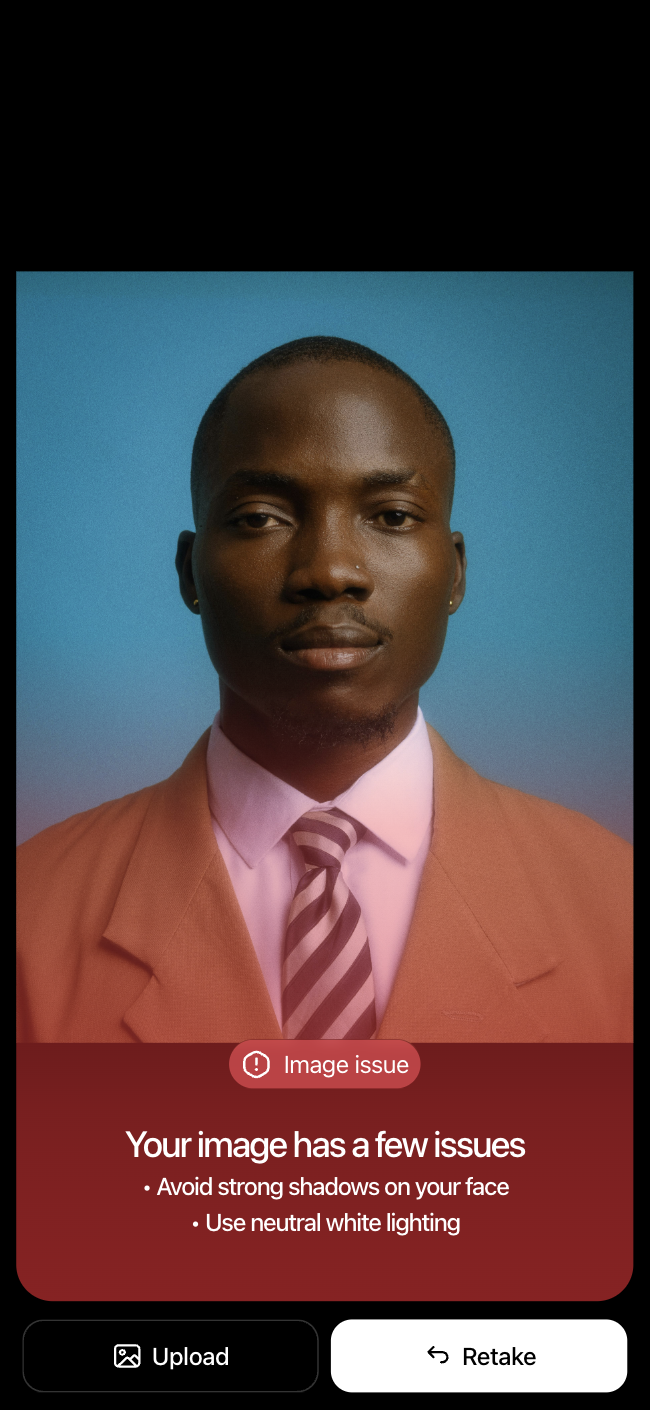
A current strict mode preview example. LIQA shows the detected issues and keeps the submission action blocked until the blocking checks pass.
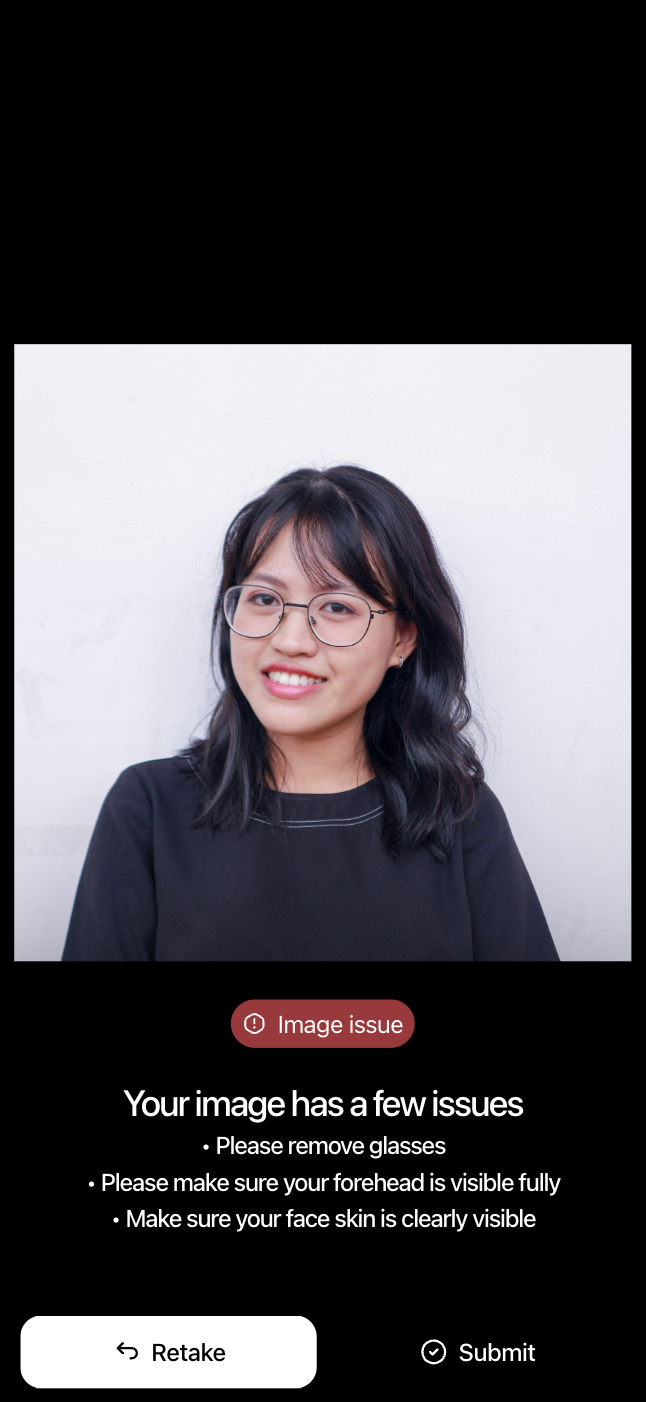
A current normal mode preview example. LIQA still lists the detected issues, but the user can submit the image after reviewing the warning.
Analytics
After post-capture validation, LIQA can emit the quality_check_result analytics event.
The event includes the quality fields LIQA measured. If ignored-quality-checks is configured, the event also includes ignored_quality_checks so you can see which checks were excluded from the decision.
Use the generated API Reference for the complete event payload contract instead of duplicating the full field list in this guide.